iphone xs怎么录屏?很多小伙伴们都还不知道,下面小编为大家整理了苹果iphone xs录屏方法教程,一起来看看吧。
iphone xs怎么录屏
第一步:
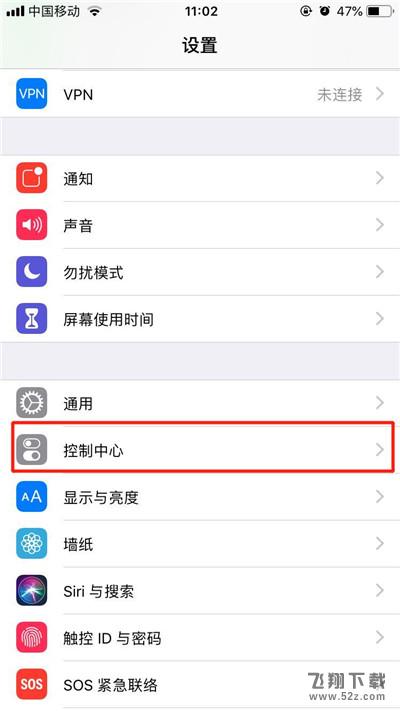
依次打开【设置】-【控制中心】。
第二步:
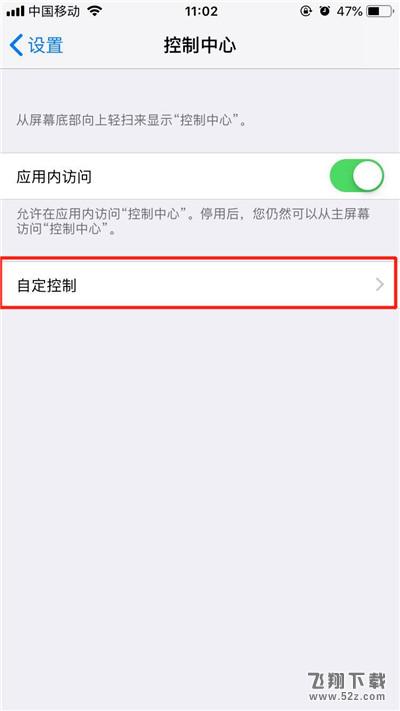
然后点击【自定控制】。
第三步:
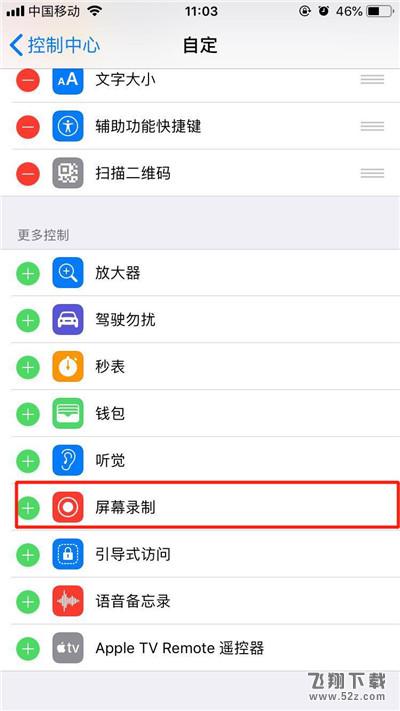
点击【屏幕录制】左边的【+】添加。
第四步:
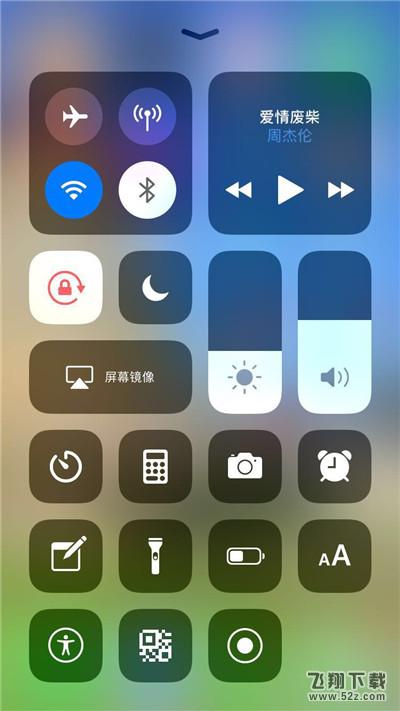
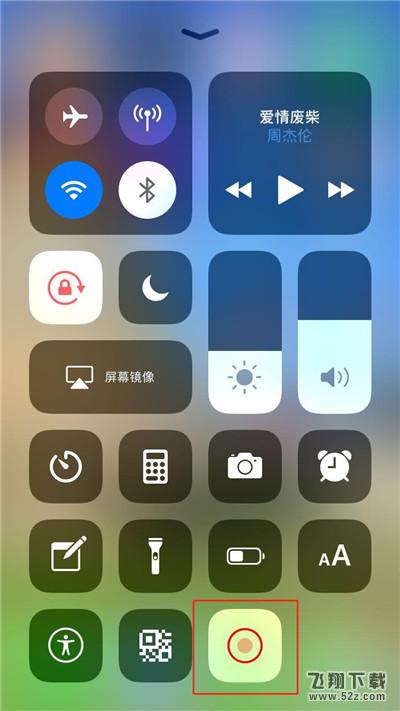
往下滑动,调出【控制中心】快捷菜单。
第五步:
点击【屏幕录制】的按钮即可开始录屏,再次点击即可录制完成。
以上就是小编为大家带来的苹果iphone xs录屏方法教程全部内容!有需要的玩家千万不要错过哦!


iphone xs怎么录屏?很多小伙伴们都还不知道,下面小编为大家整理了苹果iphone xs录屏方法教程,一起来看看吧。
iphone xs怎么录屏
第一步:
依次打开【设置】-【控制中心】。
第二步:
然后点击【自定控制】。
第三步:
点击【屏幕录制】左边的【+】添加。
第四步:
往下滑动,调出【控制中心】快捷菜单。
第五步:
点击【屏幕录制】的按钮即可开始录屏,再次点击即可录制完成。
以上就是小编为大家带来的苹果iphone xs录屏方法教程全部内容!有需要的玩家千万不要错过哦!
相关文章:1. 苹果将遵守欧盟USB-C充电法:iPhone用上Type-C2. iPhone15 Ultra最新消息动态:将采用钛金属外壳3. Redmi Note 12 Pro支持影像大脑 成像风格等有大进步4. 红米Note 12 Pro+发布 搭载2亿像素HPX旗舰大底5. 鸿蒙harmonyos3.0升级名单 正式版支持机型更新时间出炉6. 红米Note 12 Pro开启预约 配备索尼IMX766+OIS光学防抖7. iPhone设置短信黑名单 苹果手机短信黑名单怎么设置8. 华为pockets什么时候发布 华为pockets发布会时间9. Redmi K60电竞版发布时间曝光 搭载骁龙8 Gen2处理器10. ios16.1正式版新增了什么功能 新功能升级方法介绍
